If you manage your own media server, you can automatically create Series Reminder favorites for all of the shows currently stored in your Plex library. While the setup requires a small bit of technical step-by-step configuration, it is a great one-time process to instantly build your watchlist without having to manually search and add dozens of shows.
This process works by using an open-source tool called Webtools-NG on your computer to connect to your Plex server, export your TV show metadata into a CSV file, and then upload that file to Series Reminder.
Note: Once your initial library is imported, you can also set up automated, real-time tracking using the Plex Webhooks Integration, which marks episodes as watched automatically as you stream them.
A Special Note on Free Tier Limits: Free Series Reminder accounts can track up to 15 favorite shows. However, to make switching over seamless, the importer will import your entire Plex library for free, even if you have dozens or hundreds of shows. Your entire imported library will be active! You will only need to upgrade to a Supporter subscription ($20/year) if you wish to manually add brand-new shows beyond the 15-favorite limit in the future.
How the Bulk Import Process Works
This export and upload process is completely safe to run periodically as your personal Plex TV library expands over time:
- No Data Loss: No existing favorites on your dashboard will be deleted or altered by running this import.
- Default Alert Settings: Any newly imported show will be added to your favorites with the "Season Premiere" notification setting enabled by default.
- Valid IDs Required: The import parses standard TVDB IDs. Any Plex library entry with missing or invalid metadata will be safely skipped.
Step 1: Install Webtools-NG for Plex
- Navigate to the official Webtools-NG Wiki Page to download and install the app for your operating system.
- Launch the Webtools-NG application. Authenticate with your Plex account credentials so the utility can securely communicate with your media server.
- Select your targeted Plex Media Server in the dropdown menu at the top of the interface.
Step 2: Configure Global Export Settings
- In the Webtools-NG menu, click on Global Settings, then select Export Settings.
- In the Select Export Directory field, browse to the specific folder on your computer where you want the exported CSV file to be saved.
- Verify that your remaining settings match the screenshot below, then click the green Return button to save.

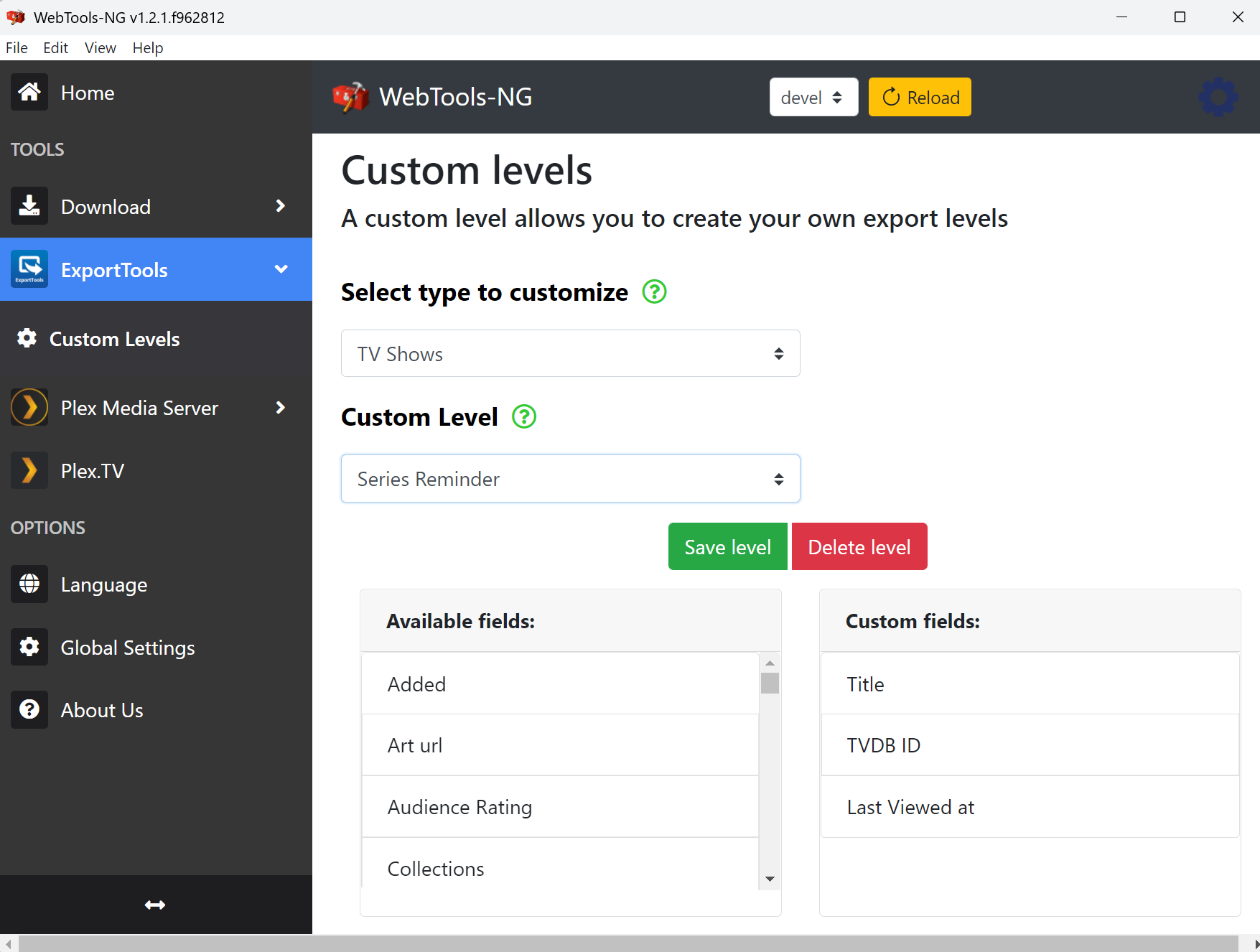
Step 3: Define a Custom Export Level
To ensure Webtools-NG only exports the specific data fields Series Reminder needs to process the import, create a custom export configuration:
- Click on Export Tools in the sidebar menu, and then select Custom Levels.
- Under Select type to customize, select TV Shows.
- Under Custom Level, select Define New Level, type in the name
Series Reminder, and click Save. - From the list of Available Fields on the left side, drag the following three fields over to the right side in this exact order:
TitleTVDB IDLast Viewed At
- When finished, click Save Level.
Step 4: Configure Export Formats
- Click on Export Tools in the sidebar menu again.
- Click the green gear settings icon in the top-right corner of the interface.
- Ensure that the checkbox for Export to CSV is active, and the checkbox for Export to xlsx is disabled.
- Click Return to Export Tools.

Step 5: Run Your Export
- (Optional tip: For best results, trigger a quick library scan inside your Plex web app and let it finish before running the export).
- Under Select Export Type, choose TV.
- Under Select Sub Type, choose TV Shows.
- Under Select Media Library, select your active TV Shows library.
- Under Export Level, select your custom
Series Reminderlevel. - Click Export Media.

Step 6: Upload to Series Reminder
- Once the export has finished running, navigate to your computer's selected Export Directory to find the newly created CSV file.
- Head over to the Plex Metadata Import page.
- Select and upload your CSV file. Once the server finishes processing the file, you will receive a confirmation email with an overview of how many favorite shows were successfully added.
If you encounter any issues downloading the CSV or matching your Plex IDs, please feel free to contact me directly. I'll be happy to help you get your Plex watchlist synced over!